LDCloud
Recharge
SALE
English
How to use file upload
Update Time:2026-06-10 18:23:51
This guide provides a complete walkthrough of the bulk upload and bulk installation features on the LDCloud desktop client. It helps you quickly upload app files to the cloud and install them on multiple target cloud phones in one go, eliminating the tedious manual operations required for individual devices and greatly boosting the efficiency of app deployment across multiple devices.
I. Bulk Upload Apps to LDCloud
Step 1: Select target apps for upload
Launch the LDCloud desktop client, locate the Upload Files entry on the interface, click it, then select the apps you intend to upload to LDCloud.
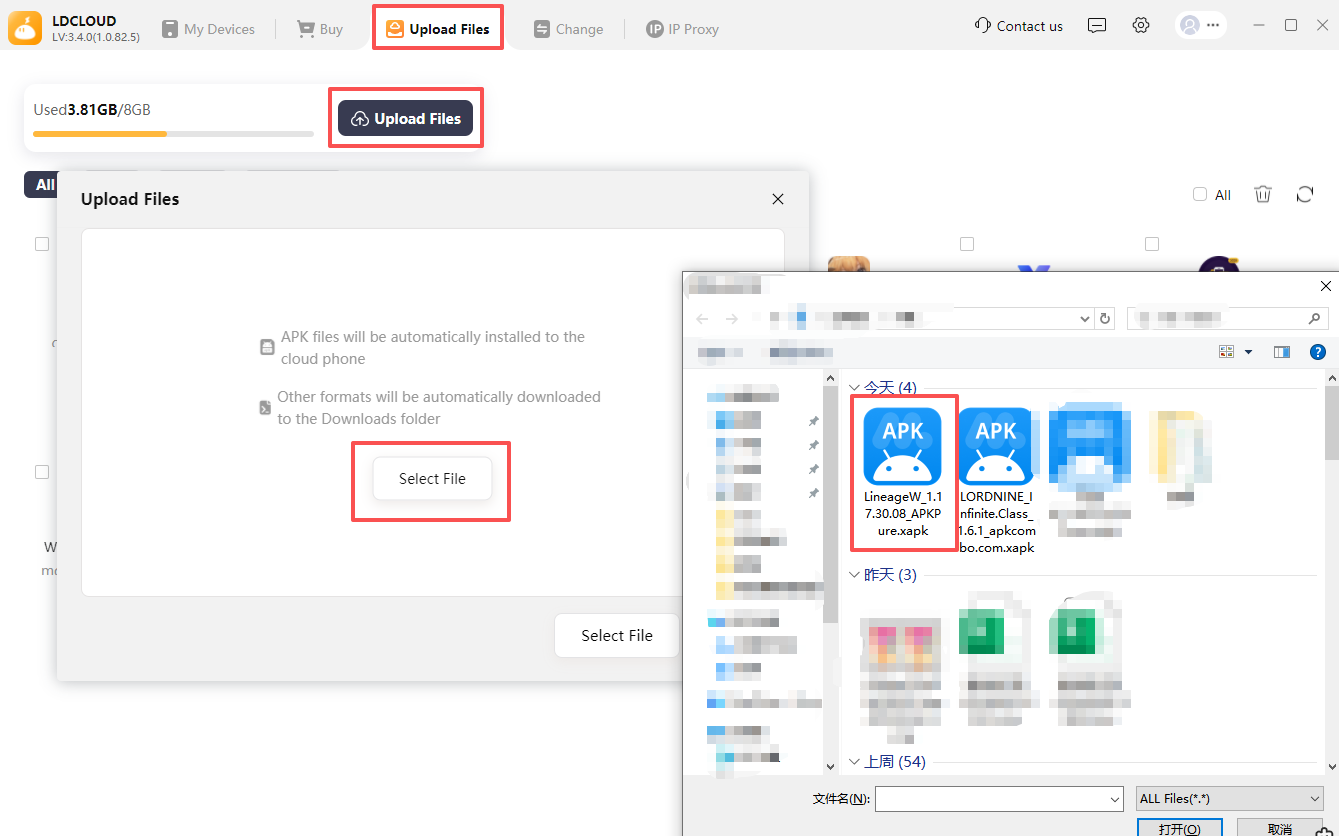
Step 2: Start the upload and verify completion
After confirming your selected apps are correct, click to start uploading. You may monitor the upload progress via the task progress bar. Once all upload tasks finish, close the upload window, and you will find the successfully uploaded apps within LDCloud.
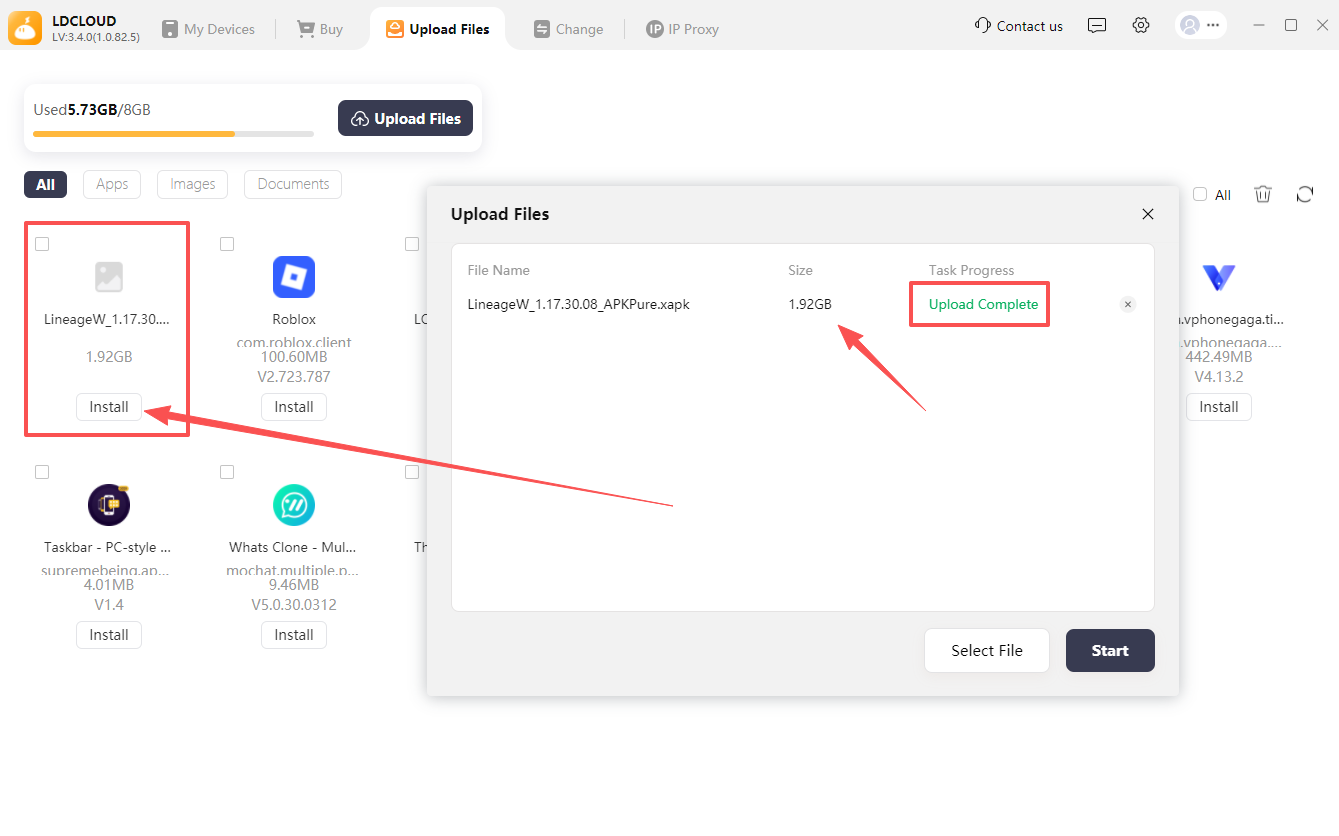
II. Bulk Install Apps to Cloud Phones
Step 1: Select files and target devices, confirm installation
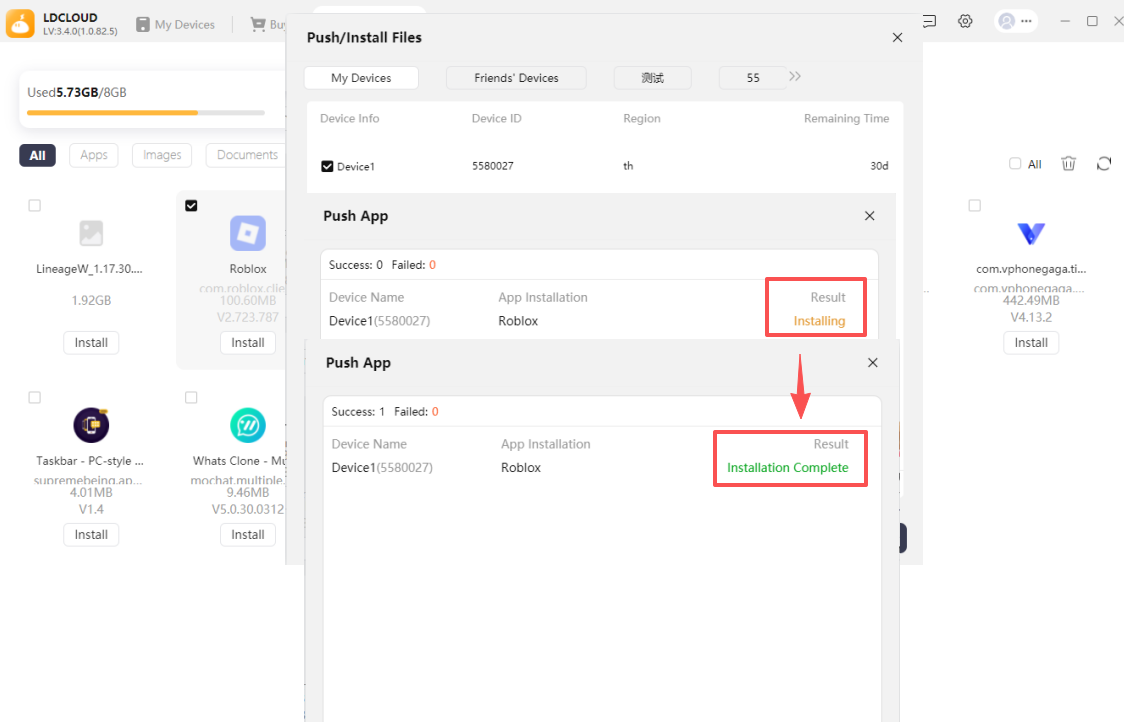
Inside LDCloud, tick the app files you want to install in bulk and click the Install button on the interface. In the pop-up window, check all target cloud phones that require this app. Double-check the selected files and devices, then click Confirm Install.
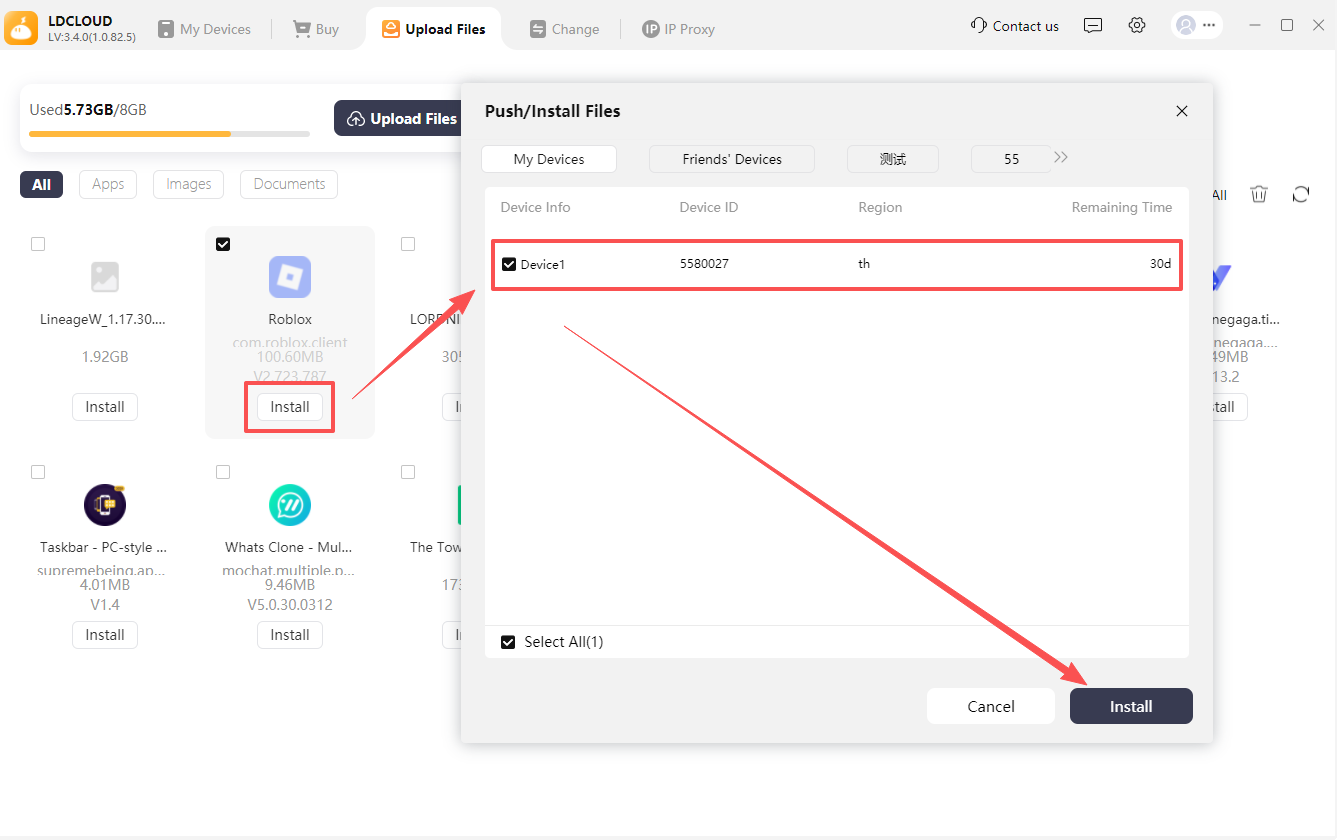
Step 2: Wait for installation and check results
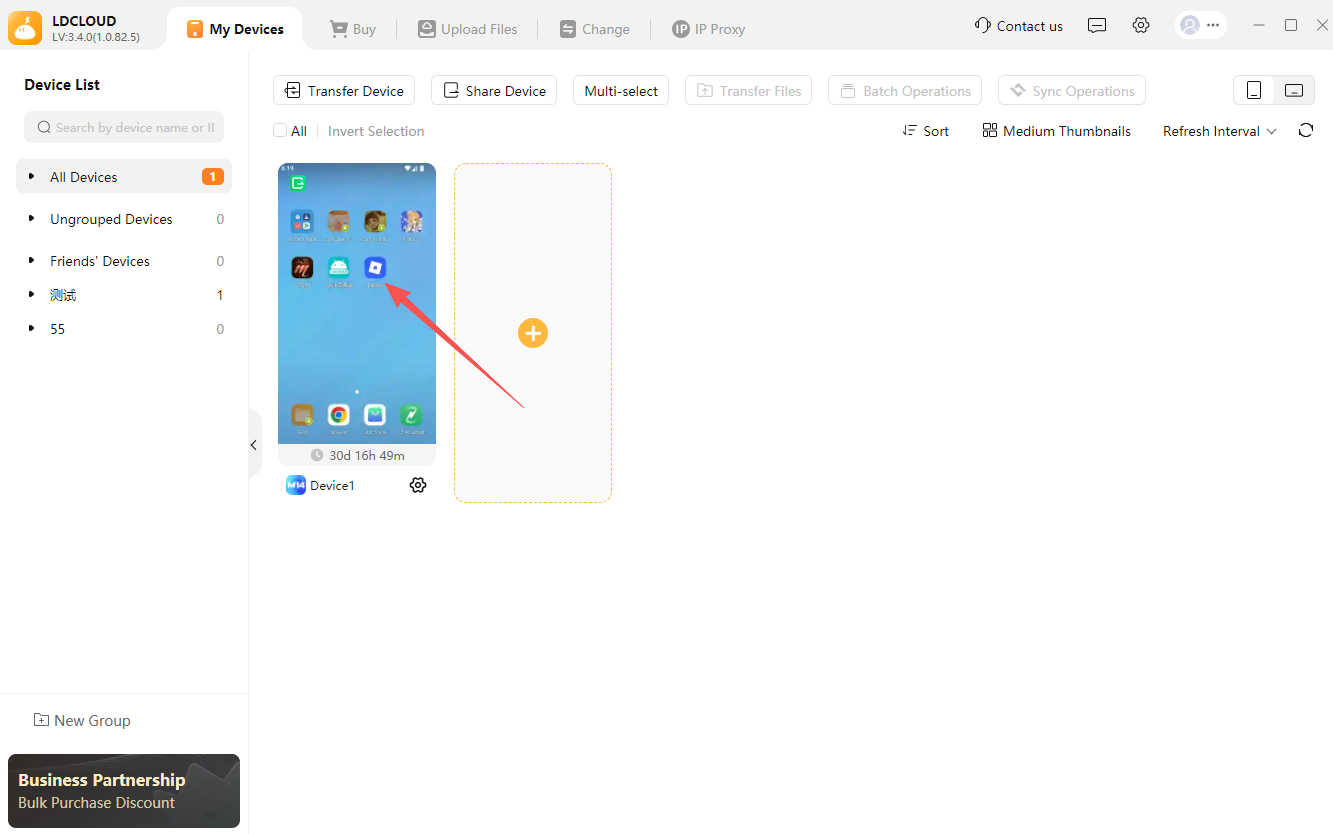
The system will automatically run the bulk installation tasks, and you can track installation progress via the task bar. After installation completes on all devices, return to the main cloud phone screen to view the apps successfully installed on each device.
Key Terminology Notes (consistent for overseas operation docs)