LDCloud
Recharge
SALE
English
Roblox Clone Installation Guide (Only Supported on MVIP Android 10 Cloud Phone)
Update Time:2026-02-05 15:59:34
This solution has been tested and reviewed by many players compared with other multi-instance or clone methods. It offers higher stability, simpler operation, and can be completed in about three minutes.
Important Notes
-
This clone method only supports MVIP Android 10 cloud phones.
-
Before starting the cloning process, please switch to an MVIP Android 10 cloud phone.
-
Other cloud phone types or Android versions do not support the installation of these clone plugins.
-
All tutorials, operation methods, plugins, and third-party tools mentioned in this article are sourced from publicly available internet resources and are not developed, provided, maintained, recommended, or authorized by this platform, nor are they official features or services.
Video Tutorial
For a detailed step-by-step video guide, please visit:
https://youtu.be/cQtTnd2Kyas?si=tlIWJvXTcs1OxEaA
1. Download Required Plugins
Inside the cloud phone, use Chrome browser or LDC Store to download and install the following plugins (you may install Via Browser first if needed):
1) Roblox Clone Installation Package
How to obtain the package:
-
Open the tutorial video link above
-
Check the video description section to find the download information
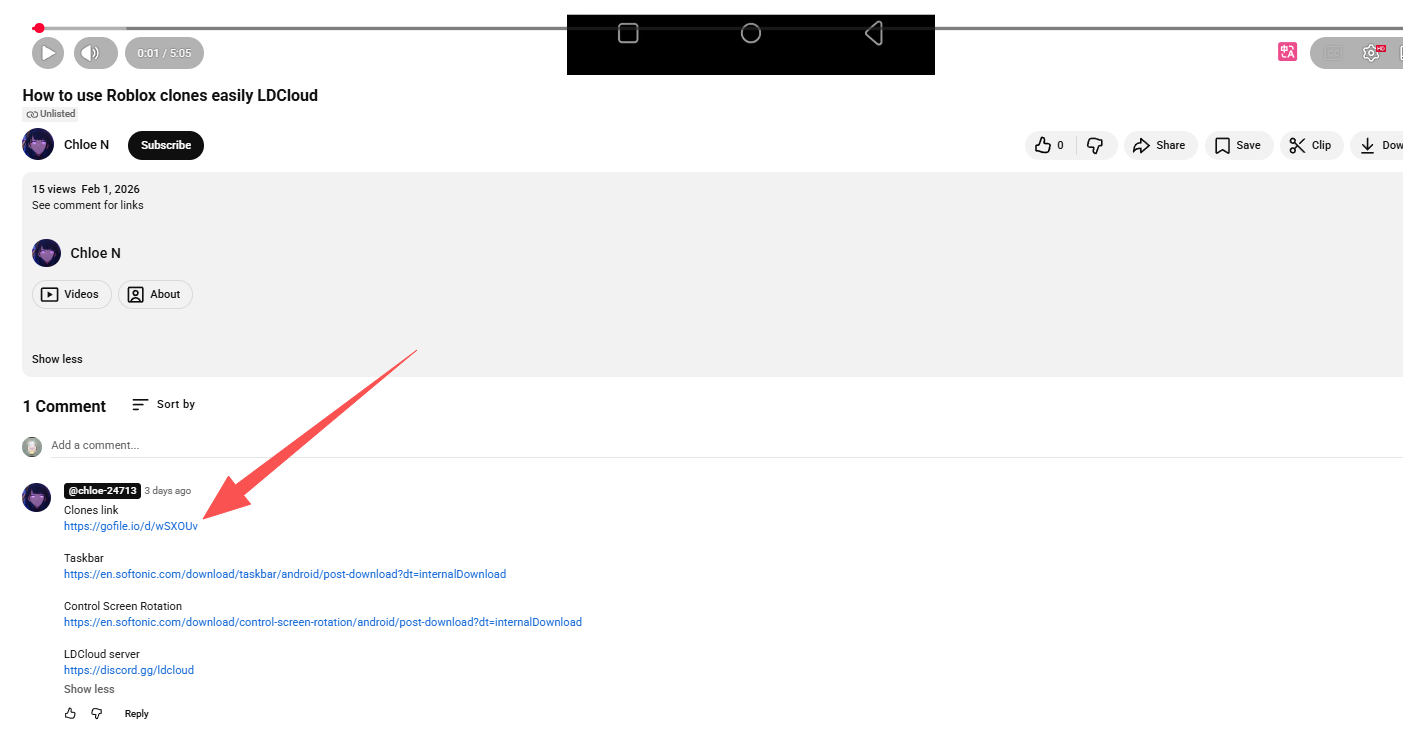
Notes:
-
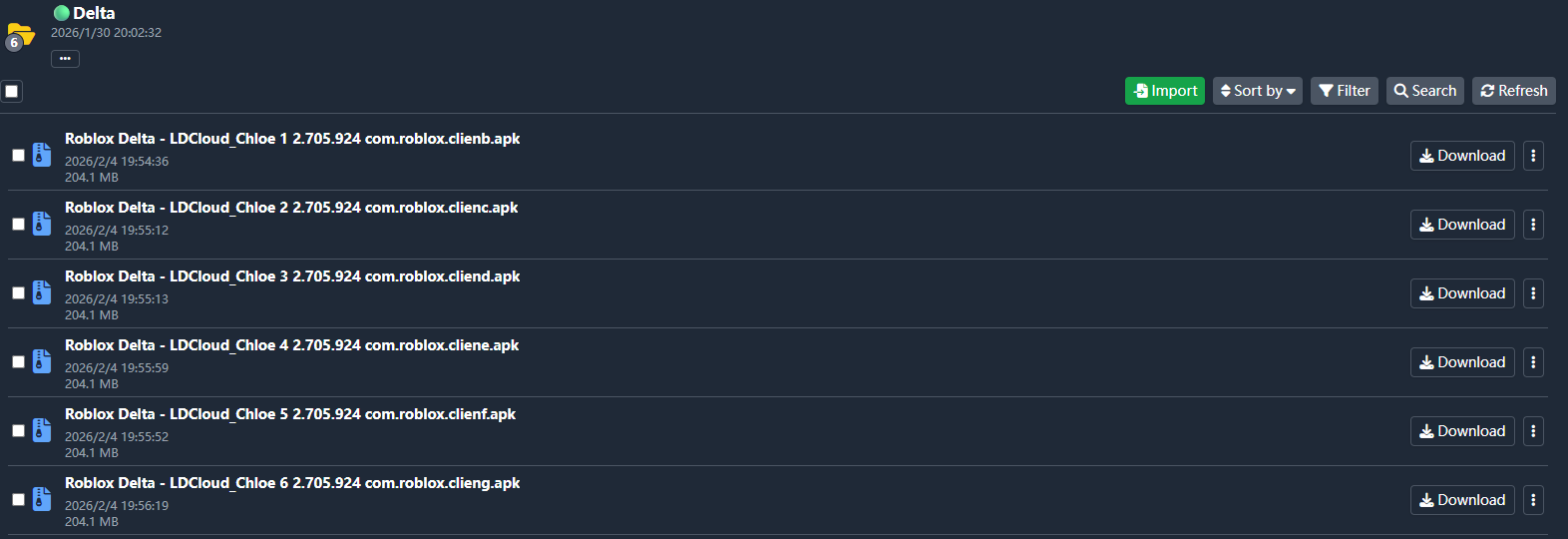
The package includes 8 packages.
-
Choose the version based on your Roblox game performance requirements
-
Different Roblox games support different numbers of tabs
-
If tab crashes occur, reduce the number of tabs to ensure stability
2) Taskbar Plugin
Download link:
https://en.softonic.com/download/taskbar/android/post-download?dt=internalDownload
Or search “Taskbar” directly on Google Play Store
3) Control Screen Rotation Plugin
Download link:
https://en.softonic.com/download/control-screen-rotation/android/post-download?dt=internalDownload
After downloading, install all plugins in order.
2. Plugin Configuration Guide
Step 1: Control Screen Rotation
-
Open Control Screen Rotation
-
Tap Select screen orientation
-
Choose Portrait
-
Tap Start service
Step 2: Taskbar
-
Open Taskbar
-
Enable the switch in the top-right corner
-
Tap OK and grant Usage Access permission
-
Enable Freeform mode
-
Uncheck Freeform window support
-
Go to General settings
-
Uncheck Collapse Taskbar when selecting items
3. Launch Roblox Clone Apps
-
Return to the desktop
-
Tap the Taskbar arrow at the bottom-left to open all apps
-
Launch each Roblox clone app one by one
-
Tap “Continue”
-
Then tap “OK” to complete setup
If you still have questions, please refer to the video tutorial:
https://youtu.be/cQtTnd2Kyas?si=tlIWJvXTcs1OxEaA
-
MVIP users can join the Discord group.
Stable clone installation packages will be frequently updated here.
Discord:https://discord.gg/VAEx8x94S
Disclaimer
All tutorials, operation methods, plugins, and third-party tools mentioned in this article are sourced from public internet resources and are not developed, provided, maintained, recommended, or authorized by this platform, nor are they official features or services.
This content is for technical research and instructional purposes only and does not constitute any form of recommendation, guarantee, or warranty.
Users must evaluate all risks themselves and ensure compliance with relevant platform, game, or service terms.
Any direct or indirect consequences arising from the use of this content or third-party resources—including but not limited to account suspension, data loss, system issues, service interruption, financial loss, or legal liability—shall be borne solely by the user, and this platform assumes no responsibility.
The platform reserves the right to modify, remove, or discontinue this content at any time without prior notice.