LDCloud
Recharge
SALE
English
LDCloud PC Client Activation Code User Guide
Update Time:2026-04-21 15:22:47
I. Activation Code Location
一、激活码位置
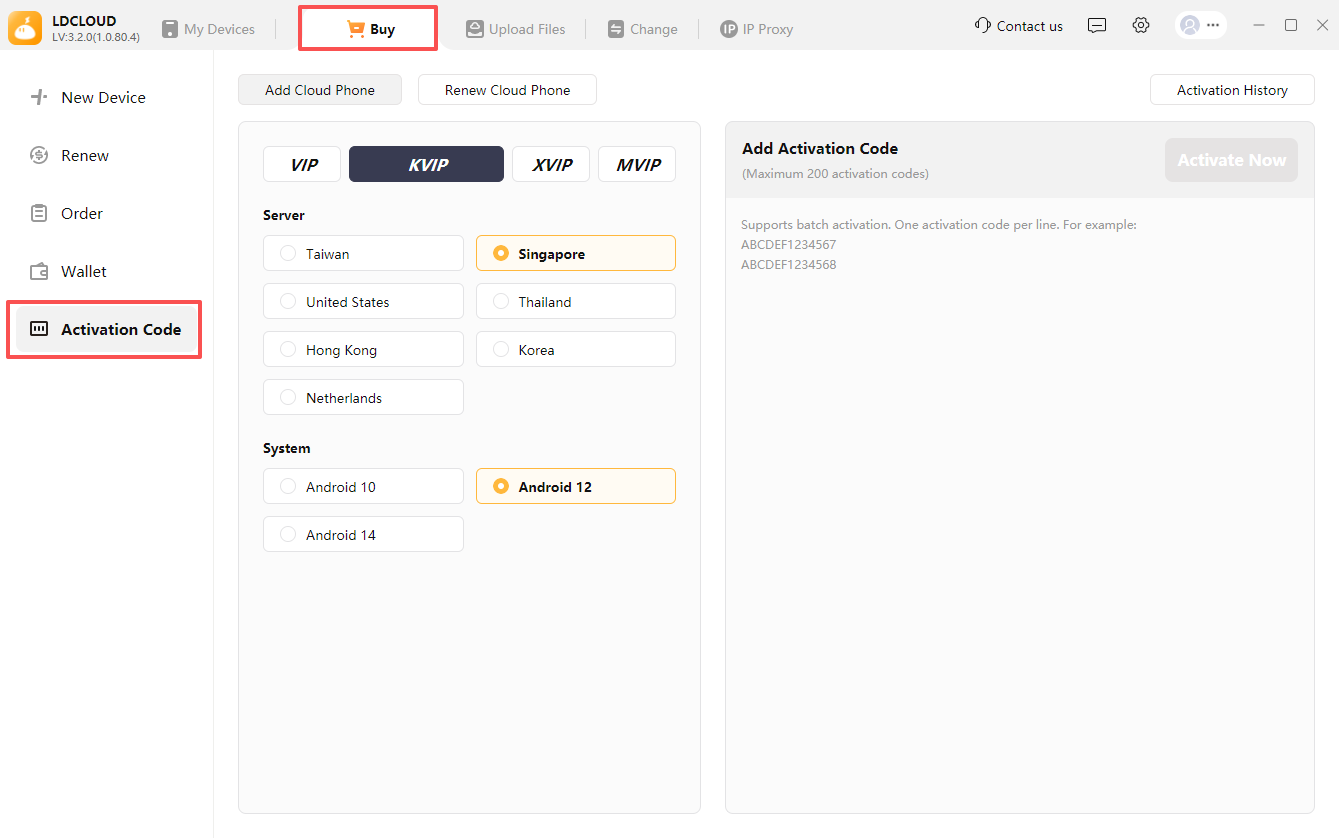
Launch the PC client, go to the Purchase page, and find the Activation Code entry in the left sidebar.
II. Add Device (Including Batch Addition)
二、添加设备(包括批量添加)
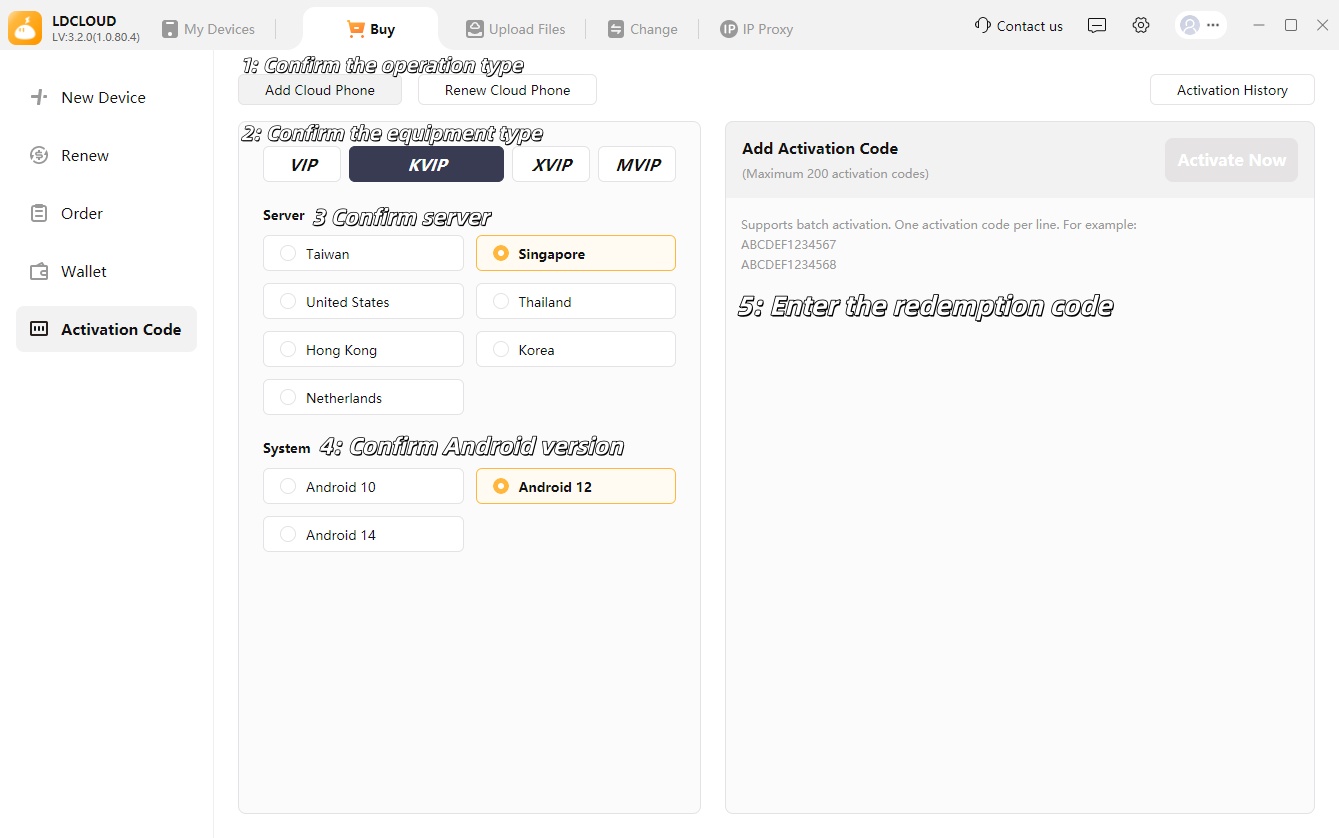
- Open the Activation Code function and select Add Cloud Phone.
- Select the device type, device server, and then the Android version.
- Copy and paste the activation code (shortcut: Ctrl+C to copy, Ctrl+V to paste) into the activation input box.
- For batch activation: enter one activation code per line (press Enter to wrap), then click Activate Now.
- After the activation success message appears, return to the client homepage to view the newly added devices.
III. Device Renewal (Including Batch Renewal)
三、设备更新(包括批量更新)
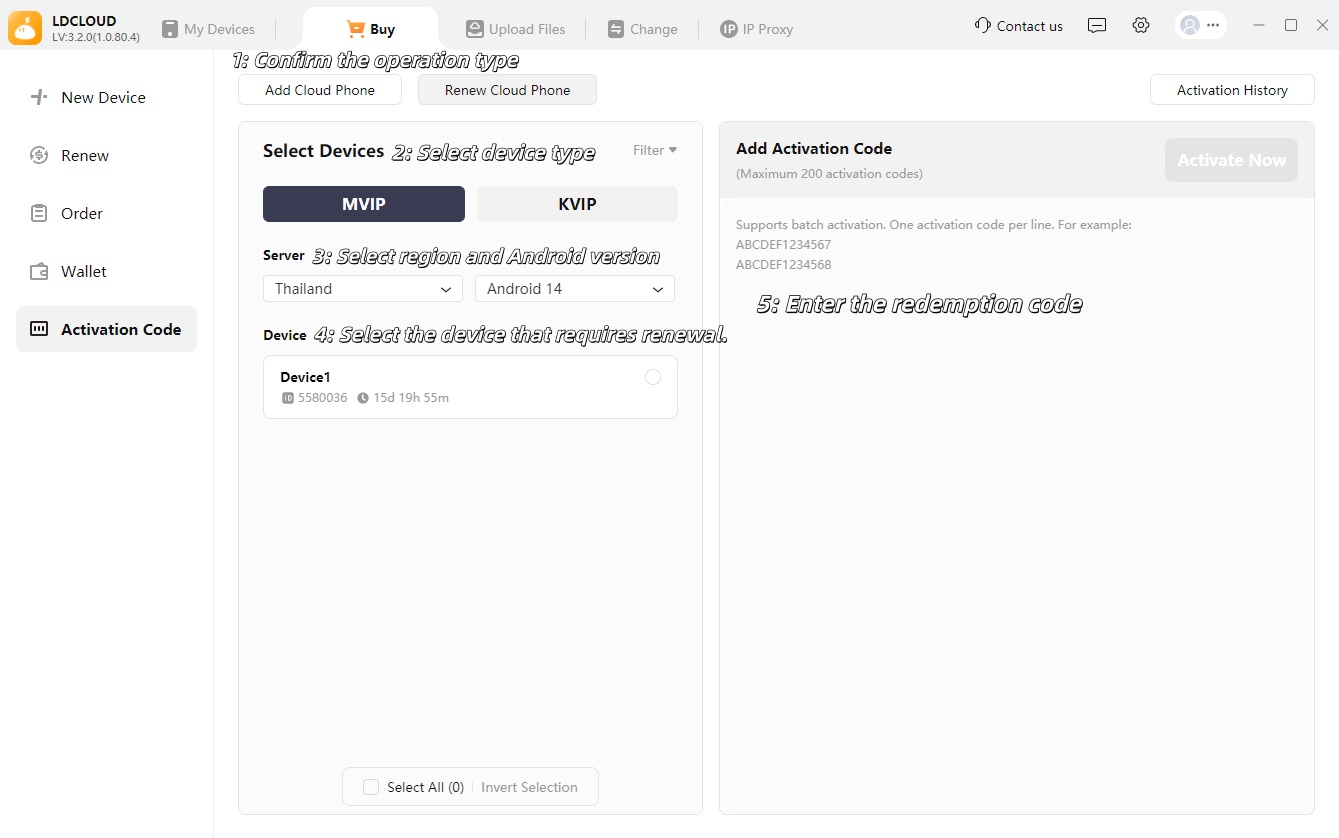
- Select Extend Cloud Phone Duration and check the devices to be renewed (you may select all).
- Confirm the selected devices, then click Add Activation Code.
- Copy and paste the activation code (Ctrl+C to copy, Ctrl+V to paste). For batch renewal, enter one code per line as well.
- Click Activate Now until the activation success prompt appears.
Finally, return to the client homepage to view the updated usage time of the cloud phone after renewal.