LDCloud
Recharge
SALE
English
How to use a scheduled restart?
Update Time:2026-06-09 18:17:29
Restarting your device effectively clears system storage and restores the performance of the cloud phone. Regular restarts further resolve lagging and stuttering caused by excessive operating load after prolonged runtime, optimizing overall smoothness. This guide fully explains how to use the Scheduled Restart feature, allowing you to set up automated restart tasks to maintain stable cloud phone operation without manual intervention.
Step-by-Step Instructions
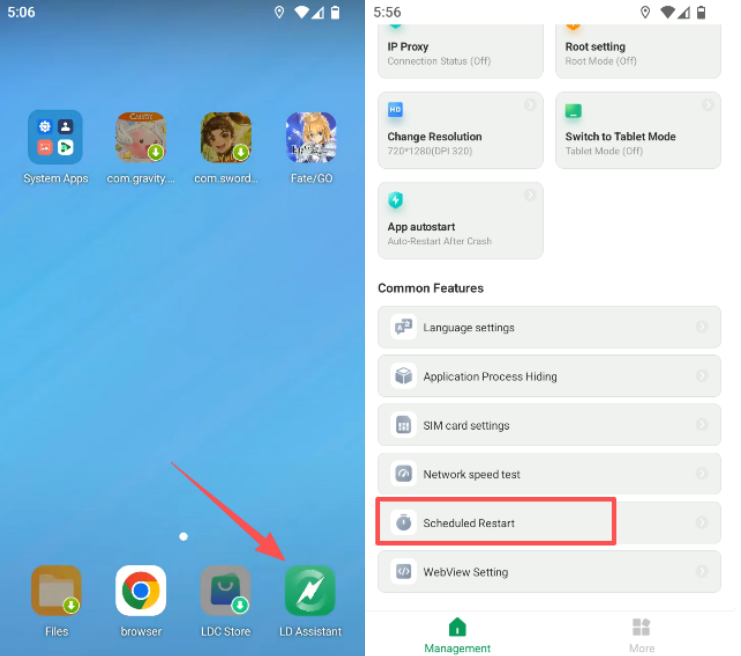
Step 1: Open the Cloud Phone Assistant inside your cloud phone
Access the operation interface of the cloud phone you wish to configure for scheduled restarts. Locate and launch the Cloud Phone Assistant app on the home screen (refer to the attached diagram for reference).
Step 2: Create a new task and set the scheduled restart time
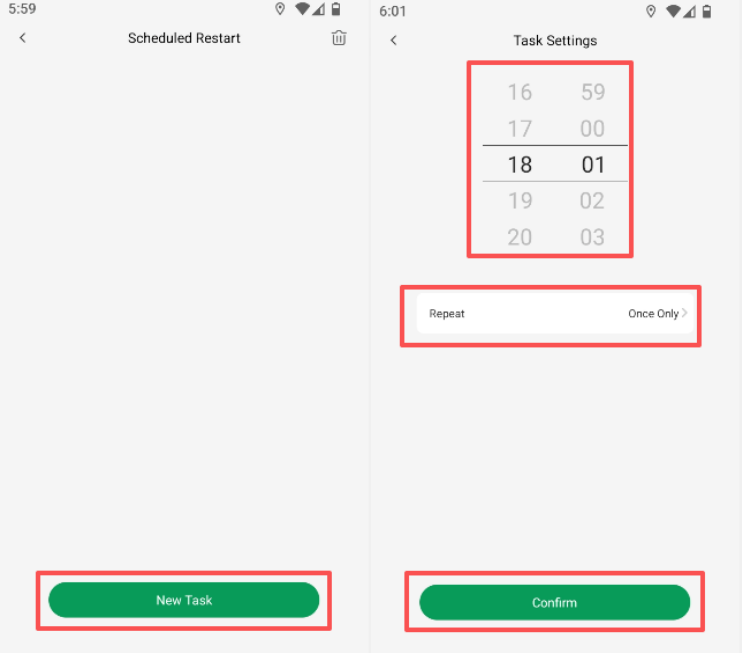
After entering the Scheduled Restart page, tap the Create New Task button. In the pop-up configuration window, select your desired auto-restart time. Tap Confirm once all settings are verified to finish creating the scheduled restart task; the system will automatically reboot the cloud phone at your specified time.
Step 3: Delete a scheduled restart task (if needed)
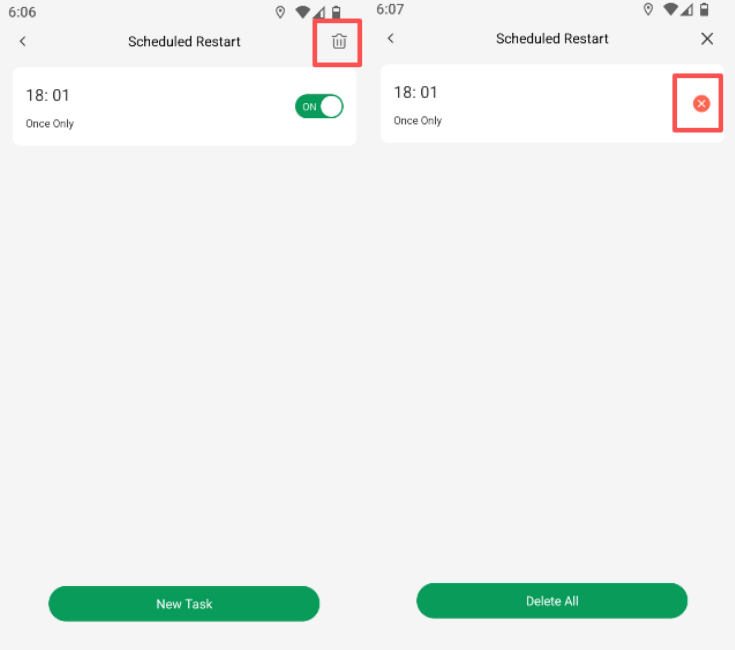
If you no longer require an existing scheduled restart command, tap the trash can icon in the upper-right corner of the interface, then tap the red cross button next to the target task to delete it.
Should you have any questions, please contact our online customer service for assistance.